> ## Documentation Index
> Fetch the complete documentation index at: https://docs.4minds.ai/llms.txt
> Use this file to discover all available pages before exploring further.
# Organize your Teams
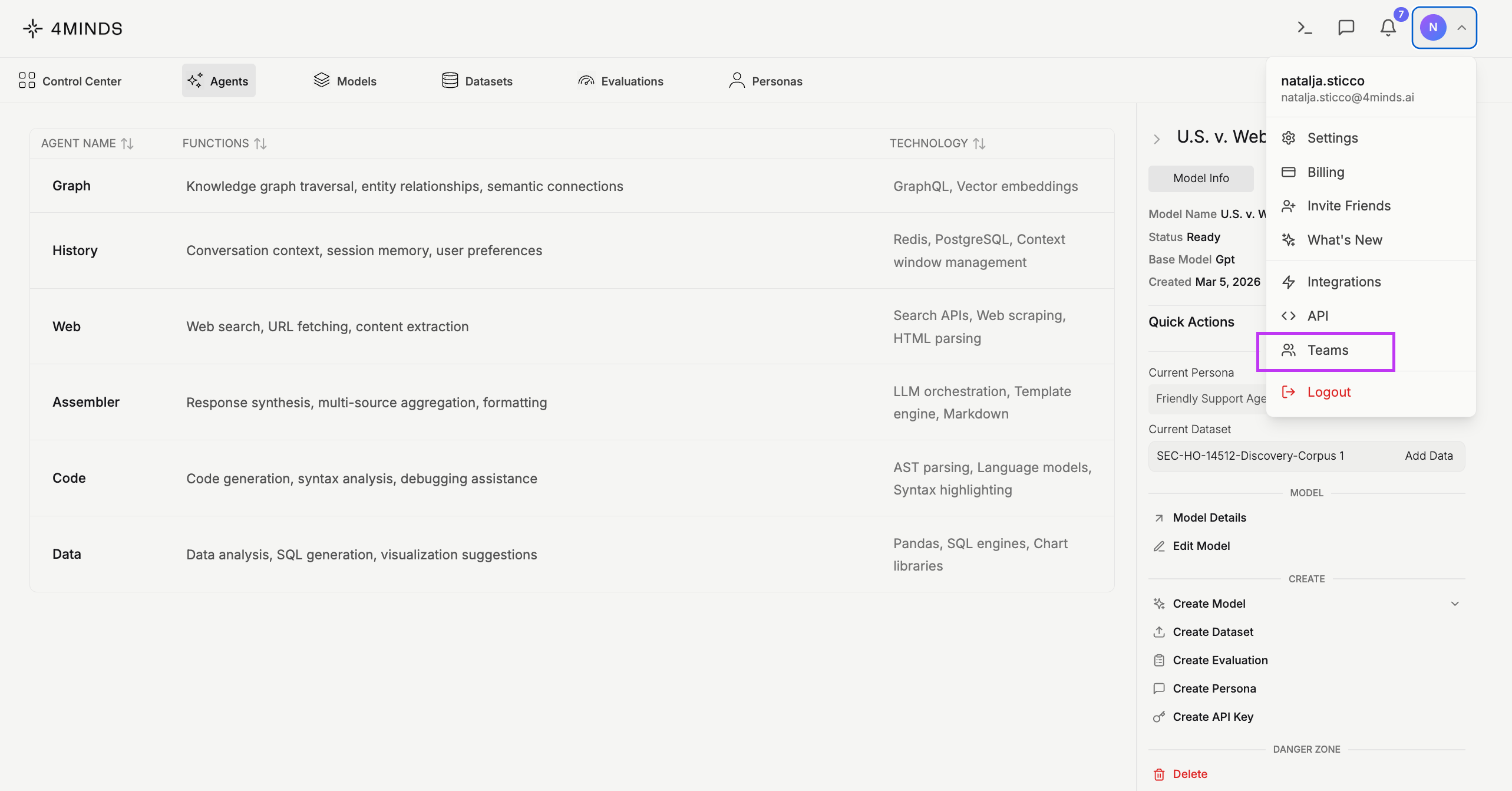
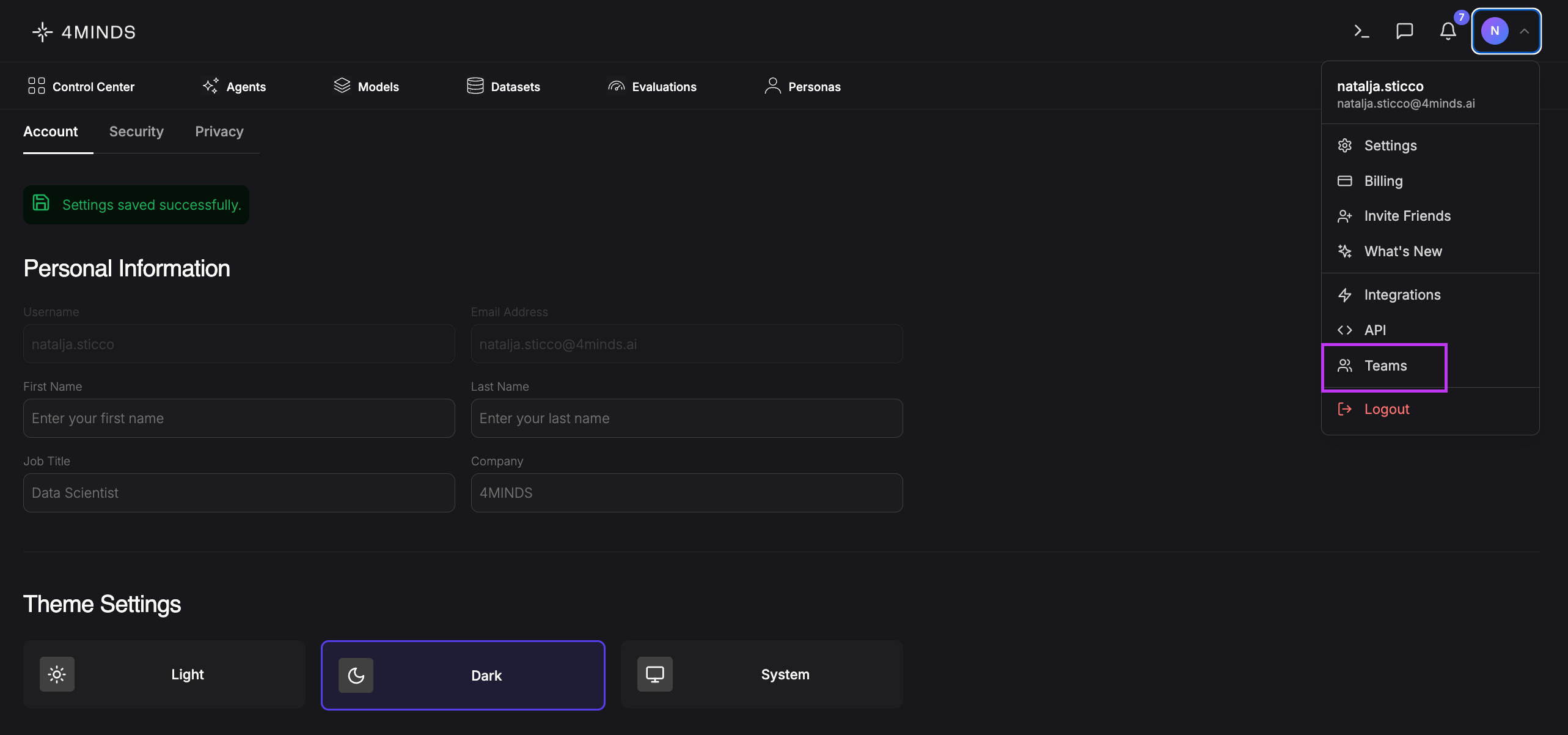
> The Teams section is your central hub for managing your organization, its members, and shared resources within 4minds.ai. It provides a unified view of organizational settings, team structure, and any models or datasets shared across your workspace. To access Teams, click your profile icon in the top-right corner of the screen and select Teams from the dropdown menu.
 **Availability:** Teams functionality is available on all paid plans. Seat limits and advanced features (SSO, audit logs) vary by tier.
| Tier | Max Team Members | SSO | Audit Logs |
| :------------- | :--------------- | :-- | :--------- |
| **Pro** | 5 | No | No |
| **Teams** | 20 | Yes | Yes |
| **Teams Plus** | 50 | Yes | Yes |
| **Enterprise** | Unlimited | Yes | Yes |
***
## Roles & Access Levels
### Organization Roles
| Role | Description |
| :------------------ | :------------------------------------------------------------------------------------------------------------------------------ |
| **Owner** | Full permissions including org deletion, billing, and all team/member management. Cannot be removed or have their role changed. |
| **Admin** | Can manage teams, members, and org settings. |
| **Billing Manager** | Handles billing operations for the organization. |
| **Member** | Standard access within the organization. |
| **Guest** | Limited, restricted access. |
### Access Levels
Access levels control what users can do with resources across the platform. They appear throughout the UI and are assigned per member.
| Access Level | Capabilities |
| :----------- | :--------------------------------------------------------------- |
| **Basic** | Read-only access to datasets and models. |
| **Plus** | Everything in Basic, plus create and update datasets/models. |
| **Admin** | Full access including delete, team creation, and administration. |
> **Note:** Access levels map to subscription tiers - Pro/Teams/Teams Plus users receive Plus access; Enterprise users receive Admin access by default.
***
## Organization Panel
At the top of the page, your **Organization** card displays:
* **Organization name**
* **Your role** (e.g., Owner)
* **Current subscription tier** (e.g., Enterprise)
* A summary of **total members** and **total teams**
***
## Teams List
The main area of the Teams tab displays all teams within your organization as **Team Cards**. Each card shows:
* Team **name** and **description**
* **Member count**
* Your **role badge** within that team
* Linked **SSO providers** (if configured)
* **Public/Private** visibility status
### Creating a Team
Click **+ Create New Team** from the Quick Actions panel. The creation modal includes:
* **Team Name** (required)
* **SSO Auto-Membership** configuration (optional) — configure during creation to automatically provision members from an SSO group:
* SSO Provider
* Identifier type
* Group identifier
* Default permission level for auto-provisioned members
### Nested Teams
Teams support a **parent-child hierarchy**. When creating or editing a team, you can optionally assign a parent team to build structured team trees within your organization.
### Public vs. Private Teams
Each team has a **visibility flag**:
* **Public** — Visible to all organization members
* **Private** — Only visible to team members and admins
***
## Team Detail View
Clicking into a team opens its **detail view**, which includes a full members table with the following columns:
| Column | Description |
| :------------------ | :------------------------------------------------------- |
| **Name & Username** | Member's display name and username |
| **Email** | Member's email address |
| **Joined** | Date the member joined the team |
| **Role** | Member's role within the team |
| **Access Level** | Basic, Plus, or Admin |
| **Source** | How the member was added — SSO provider name or "Manual" |
| **Options** | Actions available for that member |
### Member Management
* Members must be **organization members first** before being added to a team
* When adding a member, specify their **access level** (Basic / Plus / Admin)
* Member permissions can be **updated after joining** via the permissions panel
* Use the **search/filter** bar to find members within large teams
* **Bulk operations** — select multiple members and bulk remove them. Removal requires typing `REMOVE` to confirm
> **Note:** The organization owner cannot be removed or have their role changed.
***
## Team Settings Panel
Each team has a dedicated settings panel (accessible from the team detail view) displaying:
* **Stats:** Members, Admins, Pending Invites
* **Editable team name**
* **SSO Auto-Membership mappings** — configure which SSO groups automatically provision members into this team:
| Provider | Supported Identifier Types |
| :------------------- | :------------------------- |
| **Azure Entra ID** | object\_id, name, email |
| **Okta** | name, email |
| **Google Workspace** | email |
| **GitHub** | team\_slug |
| **LDAP** | DN |
Each SSO mapping includes a **default permission level** for auto-provisioned members.
***
## Invitation System
Admins can invite new users to the organization. Invitations support:
* **Statuses:** Pending, Accepted, Declined, Expired, Revoked
* **Auto-join:** Specify a team and access level so the user is automatically placed on acceptance
* **Seat limit enforcement** based on your subscription tier
* **Privacy-conscious design** — the system does not reveal whether an email address already has an account
***
## Shared Resources
The **Shared Resources** section displays all models and datasets shared with you by other organization members. It is divided into two sub-tabs:
### Shared Models
Displays a table of all models shared with you:
| Column | Description |
| :------------- | :------------------------------------------------- |
| **Name** | The name of the shared model |
| **Parameters** | Configuration parameters associated with the model |
| **Base** | The base model it was built upon |
| **Persona** | The persona assigned to the model |
| **Created** | The date the model was created |
| **Actions** | Available actions you can perform on the model |
> If no models have been shared yet, a **"No Shared Models"** placeholder will be displayed.
### Shared Datasets
Displays datasets shared with you by other team members. A dataset can be shared with the entire organization, specific teams, or individual users.
***
## Organization Settings Panel (Right Sidebar)
The right-hand sidebar provides quick access to your organization's configuration and key stats.
### Summary Stats
| Stat | Description |
| :------------------ | :---------------------------------------------------- |
| **Members** | Total number of members in the organization |
| **Teams** | Total number of teams created |
| **Admins** | Number of users with admin privileges |
| **Pending Invites** | Number of outstanding invitations awaiting acceptance |
### General Settings
* **Org Name** - View or update the display name of your organization.
* **Current Tier** - Displays the active subscription plan. Read-only.
* **Allowed Email Domains** - Define which email domains are permitted to log in via SSO and be auto-matched to your organization. Add new domains via the input field and **+ Add** button, or remove existing ones using the delete icon.
### AD/LDAP Integration
The **AD/LDAP Integration** tab allows you to connect [4minds.ai](http://4minds.ai) to your directory service for centralized authentication.
**Azure AD mode** requires:
* Tenant ID, Client ID, Client Secret
* Enable/disable toggle
**LDAP mode** requires:
* Server URL, Bind DN, Bind Password
* Base DN, User Search Filter, Group Attribute
* SSL/TLS and STARTTLS options
* Certificate validation toggle
Both modes support:
* **Test Connection** button with live status feedback
* **AD Preview** showing mapped groups
* **Auto-team creation** from AD/LDAP groups
***
## Quick Actions
Located at the bottom of the right sidebar:
* **+ Create New Team** — Set up a new team within your organization.
* **+ Add Member(s)** — Invite new users to join your organization.
***
## Audit Trail
All RBAC actions - role changes, permission grants, member additions and removals - are logged in a full **audit trail** with actor, target, resource, IP address, and timestamp. Audit logs are available on **Teams tier and above**.
***
## Organization Deletion
Only the **Owner** can delete an organization. Deletion requires a confirmation step. Upon deletion, resources (models, datasets, etc.) are **orphaned but not deleted**.
***
## Tips
> **Access Levels are core:** Basic, Plus, and Admin access levels appear throughout the UI. Make sure members are assigned the right level when they join a team.
> **SSO Auto-Membership saves time:** Configure SSO group mappings on your teams so new hires are automatically provisioned to the right teams on first login - no manual steps required.
> **Use nested teams for large orgs:** Parent-child team hierarchies help organize departments and sub-teams without losing visibility across the org.
## Organization Panel
At the top of the page, you will see your **Organization** card displaying:
* **Organization name** (e.g., [4minds.ai](http://4minds.ai))
* **Your role** within the organization (e.g., Owner)
* **Current subscription tier** (e.g., Enterprise)
* A summary of **total members** and **total teams** belonging to the organization
***
## Shared Resources
The **Shared Resources** section allows you to view all models and datasets that other team members have shared with you. It is divided into two sub-tabs:
### Shared Models
Displays a table of all models shared with you, including the following columns:
| Column | Description |
| :------------- | :------------------------------------------------- |
| **Name** | The name of the shared model |
| **Parameters** | Configuration parameters associated with the model |
| **Base** | The base model it was built upon |
| **Persona** | The persona assigned to the model |
| **Created** | The date the model was created |
| **Actions** | Available actions you can perform on the model |
> If no models have been shared yet, a **"No Shared Models"** placeholder will be displayed.
### Shared Datasets
Displays datasets shared with you by other team members. Switching to this sub-tab will list all available shared datasets in your organization.
***
## Organization Settings Panel (Right Sidebar)
The right-hand sidebar provides quick access to your organization's configuration and statistics.
### Summary Stats
| Stat | Description |
| :------------------ | :---------------------------------------------------- |
| **Members** | Total number of members in the organization |
| **Teams** | Total number of teams created |
| **Admins** | Number of users with admin privileges |
| **Pending Invites** | Number of outstanding invitations awaiting acceptance |
### General Settings
* **Org Name** – View or update the display name of your organization.
* **Current Tier** – Displays the active subscription plan (e.g., Enterprise). This is read-only.
* **Allowed Email Domains** – Define which email domains are permitted to log in via SSO and be auto-matched to your organization. You can add new domains using the input field and the **+ Add** button, or remove existing ones using the delete icon.
### AD/LDAP Integration Tab
Switching to this tab allows you to configure Active Directory or LDAP-based authentication for your organization.
***
## Quick Actions
Located at the bottom of the right sidebar, Quick Actions give you fast access to common team management tasks:
* **+ Create New Team** – Set up a new team within your organization.
* **+ Add Member(s)** – Invite new users to join your organization.
***
## Tips
> **Note:** Only users with **Owner** or **Admin** roles can modify Org Settings and manage members.
> **SSO Tip:** Domains added under **Allowed Email Domains** enable seamless SSO onboarding — users with matching email addresses will be automatically associated with your organization upon login.
**Availability:** Teams functionality is available on all paid plans. Seat limits and advanced features (SSO, audit logs) vary by tier.
| Tier | Max Team Members | SSO | Audit Logs |
| :------------- | :--------------- | :-- | :--------- |
| **Pro** | 5 | No | No |
| **Teams** | 20 | Yes | Yes |
| **Teams Plus** | 50 | Yes | Yes |
| **Enterprise** | Unlimited | Yes | Yes |
***
## Roles & Access Levels
### Organization Roles
| Role | Description |
| :------------------ | :------------------------------------------------------------------------------------------------------------------------------ |
| **Owner** | Full permissions including org deletion, billing, and all team/member management. Cannot be removed or have their role changed. |
| **Admin** | Can manage teams, members, and org settings. |
| **Billing Manager** | Handles billing operations for the organization. |
| **Member** | Standard access within the organization. |
| **Guest** | Limited, restricted access. |
### Access Levels
Access levels control what users can do with resources across the platform. They appear throughout the UI and are assigned per member.
| Access Level | Capabilities |
| :----------- | :--------------------------------------------------------------- |
| **Basic** | Read-only access to datasets and models. |
| **Plus** | Everything in Basic, plus create and update datasets/models. |
| **Admin** | Full access including delete, team creation, and administration. |
> **Note:** Access levels map to subscription tiers - Pro/Teams/Teams Plus users receive Plus access; Enterprise users receive Admin access by default.
***
## Organization Panel
At the top of the page, your **Organization** card displays:
* **Organization name**
* **Your role** (e.g., Owner)
* **Current subscription tier** (e.g., Enterprise)
* A summary of **total members** and **total teams**
***
## Teams List
The main area of the Teams tab displays all teams within your organization as **Team Cards**. Each card shows:
* Team **name** and **description**
* **Member count**
* Your **role badge** within that team
* Linked **SSO providers** (if configured)
* **Public/Private** visibility status
### Creating a Team
Click **+ Create New Team** from the Quick Actions panel. The creation modal includes:
* **Team Name** (required)
* **SSO Auto-Membership** configuration (optional) — configure during creation to automatically provision members from an SSO group:
* SSO Provider
* Identifier type
* Group identifier
* Default permission level for auto-provisioned members
### Nested Teams
Teams support a **parent-child hierarchy**. When creating or editing a team, you can optionally assign a parent team to build structured team trees within your organization.
### Public vs. Private Teams
Each team has a **visibility flag**:
* **Public** — Visible to all organization members
* **Private** — Only visible to team members and admins
***
## Team Detail View
Clicking into a team opens its **detail view**, which includes a full members table with the following columns:
| Column | Description |
| :------------------ | :------------------------------------------------------- |
| **Name & Username** | Member's display name and username |
| **Email** | Member's email address |
| **Joined** | Date the member joined the team |
| **Role** | Member's role within the team |
| **Access Level** | Basic, Plus, or Admin |
| **Source** | How the member was added — SSO provider name or "Manual" |
| **Options** | Actions available for that member |
### Member Management
* Members must be **organization members first** before being added to a team
* When adding a member, specify their **access level** (Basic / Plus / Admin)
* Member permissions can be **updated after joining** via the permissions panel
* Use the **search/filter** bar to find members within large teams
* **Bulk operations** — select multiple members and bulk remove them. Removal requires typing `REMOVE` to confirm
> **Note:** The organization owner cannot be removed or have their role changed.
***
## Team Settings Panel
Each team has a dedicated settings panel (accessible from the team detail view) displaying:
* **Stats:** Members, Admins, Pending Invites
* **Editable team name**
* **SSO Auto-Membership mappings** — configure which SSO groups automatically provision members into this team:
| Provider | Supported Identifier Types |
| :------------------- | :------------------------- |
| **Azure Entra ID** | object\_id, name, email |
| **Okta** | name, email |
| **Google Workspace** | email |
| **GitHub** | team\_slug |
| **LDAP** | DN |
Each SSO mapping includes a **default permission level** for auto-provisioned members.
***
## Invitation System
Admins can invite new users to the organization. Invitations support:
* **Statuses:** Pending, Accepted, Declined, Expired, Revoked
* **Auto-join:** Specify a team and access level so the user is automatically placed on acceptance
* **Seat limit enforcement** based on your subscription tier
* **Privacy-conscious design** — the system does not reveal whether an email address already has an account
***
## Shared Resources
The **Shared Resources** section displays all models and datasets shared with you by other organization members. It is divided into two sub-tabs:
### Shared Models
Displays a table of all models shared with you:
| Column | Description |
| :------------- | :------------------------------------------------- |
| **Name** | The name of the shared model |
| **Parameters** | Configuration parameters associated with the model |
| **Base** | The base model it was built upon |
| **Persona** | The persona assigned to the model |
| **Created** | The date the model was created |
| **Actions** | Available actions you can perform on the model |
> If no models have been shared yet, a **"No Shared Models"** placeholder will be displayed.
### Shared Datasets
Displays datasets shared with you by other team members. A dataset can be shared with the entire organization, specific teams, or individual users.
***
## Organization Settings Panel (Right Sidebar)
The right-hand sidebar provides quick access to your organization's configuration and key stats.
### Summary Stats
| Stat | Description |
| :------------------ | :---------------------------------------------------- |
| **Members** | Total number of members in the organization |
| **Teams** | Total number of teams created |
| **Admins** | Number of users with admin privileges |
| **Pending Invites** | Number of outstanding invitations awaiting acceptance |
### General Settings
* **Org Name** - View or update the display name of your organization.
* **Current Tier** - Displays the active subscription plan. Read-only.
* **Allowed Email Domains** - Define which email domains are permitted to log in via SSO and be auto-matched to your organization. Add new domains via the input field and **+ Add** button, or remove existing ones using the delete icon.
### AD/LDAP Integration
The **AD/LDAP Integration** tab allows you to connect [4minds.ai](http://4minds.ai) to your directory service for centralized authentication.
**Azure AD mode** requires:
* Tenant ID, Client ID, Client Secret
* Enable/disable toggle
**LDAP mode** requires:
* Server URL, Bind DN, Bind Password
* Base DN, User Search Filter, Group Attribute
* SSL/TLS and STARTTLS options
* Certificate validation toggle
Both modes support:
* **Test Connection** button with live status feedback
* **AD Preview** showing mapped groups
* **Auto-team creation** from AD/LDAP groups
***
## Quick Actions
Located at the bottom of the right sidebar:
* **+ Create New Team** — Set up a new team within your organization.
* **+ Add Member(s)** — Invite new users to join your organization.
***
## Audit Trail
All RBAC actions - role changes, permission grants, member additions and removals - are logged in a full **audit trail** with actor, target, resource, IP address, and timestamp. Audit logs are available on **Teams tier and above**.
***
## Organization Deletion
Only the **Owner** can delete an organization. Deletion requires a confirmation step. Upon deletion, resources (models, datasets, etc.) are **orphaned but not deleted**.
***
## Tips
> **Access Levels are core:** Basic, Plus, and Admin access levels appear throughout the UI. Make sure members are assigned the right level when they join a team.
> **SSO Auto-Membership saves time:** Configure SSO group mappings on your teams so new hires are automatically provisioned to the right teams on first login - no manual steps required.
> **Use nested teams for large orgs:** Parent-child team hierarchies help organize departments and sub-teams without losing visibility across the org.
## Organization Panel
At the top of the page, you will see your **Organization** card displaying:
* **Organization name** (e.g., [4minds.ai](http://4minds.ai))
* **Your role** within the organization (e.g., Owner)
* **Current subscription tier** (e.g., Enterprise)
* A summary of **total members** and **total teams** belonging to the organization
***
## Shared Resources
The **Shared Resources** section allows you to view all models and datasets that other team members have shared with you. It is divided into two sub-tabs:
### Shared Models
Displays a table of all models shared with you, including the following columns:
| Column | Description |
| :------------- | :------------------------------------------------- |
| **Name** | The name of the shared model |
| **Parameters** | Configuration parameters associated with the model |
| **Base** | The base model it was built upon |
| **Persona** | The persona assigned to the model |
| **Created** | The date the model was created |
| **Actions** | Available actions you can perform on the model |
> If no models have been shared yet, a **"No Shared Models"** placeholder will be displayed.
### Shared Datasets
Displays datasets shared with you by other team members. Switching to this sub-tab will list all available shared datasets in your organization.
***
## Organization Settings Panel (Right Sidebar)
The right-hand sidebar provides quick access to your organization's configuration and statistics.
### Summary Stats
| Stat | Description |
| :------------------ | :---------------------------------------------------- |
| **Members** | Total number of members in the organization |
| **Teams** | Total number of teams created |
| **Admins** | Number of users with admin privileges |
| **Pending Invites** | Number of outstanding invitations awaiting acceptance |
### General Settings
* **Org Name** – View or update the display name of your organization.
* **Current Tier** – Displays the active subscription plan (e.g., Enterprise). This is read-only.
* **Allowed Email Domains** – Define which email domains are permitted to log in via SSO and be auto-matched to your organization. You can add new domains using the input field and the **+ Add** button, or remove existing ones using the delete icon.
### AD/LDAP Integration Tab
Switching to this tab allows you to configure Active Directory or LDAP-based authentication for your organization.
***
## Quick Actions
Located at the bottom of the right sidebar, Quick Actions give you fast access to common team management tasks:
* **+ Create New Team** – Set up a new team within your organization.
* **+ Add Member(s)** – Invite new users to join your organization.
***
## Tips
> **Note:** Only users with **Owner** or **Admin** roles can modify Org Settings and manage members.
> **SSO Tip:** Domains added under **Allowed Email Domains** enable seamless SSO onboarding — users with matching email addresses will be automatically associated with your organization upon login.