

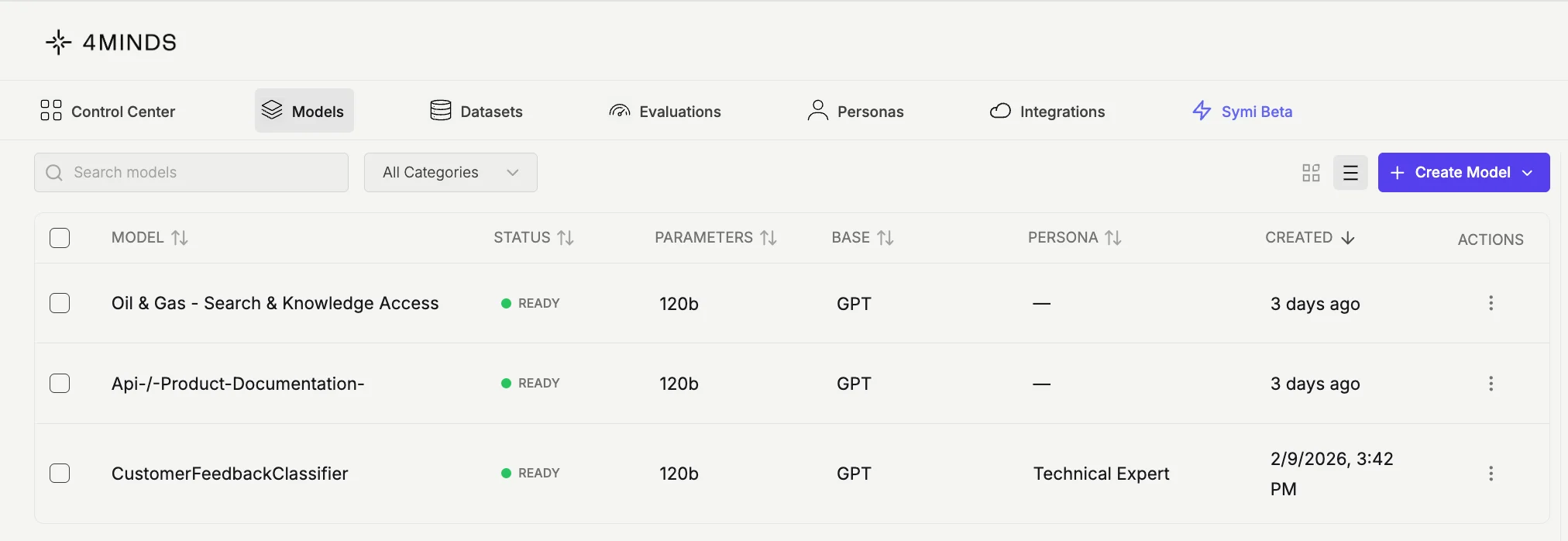
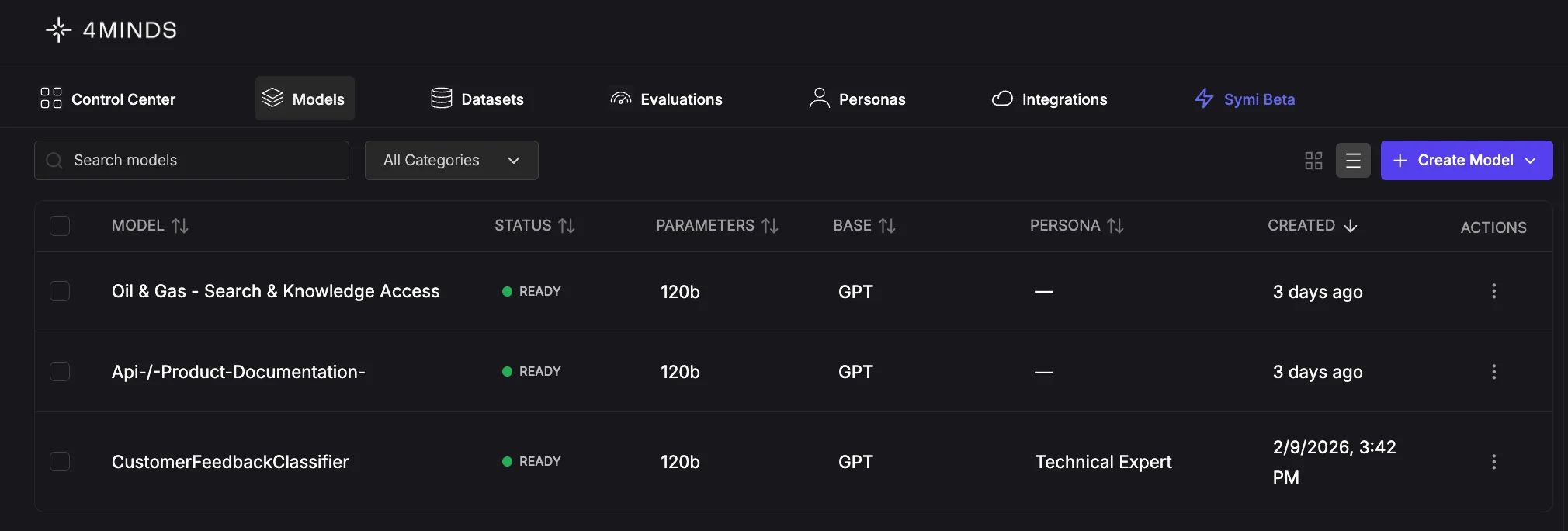
View Options
Toggle between two display modes to suit your preference:- Card view - Visual grid layout showing models as cards
- Table view - Compact tabular format for detailed information
Base model
When deploying directly on 4Minds, your custom model runs ongpt-oss-120b. There is no in-platform base-model picker.
Direct base-model selection has been deprecated. To use other foundation models, connect an external provider. See Creating a Model in Advanced Mode below for details.
Creating a Model in Advanced Mode
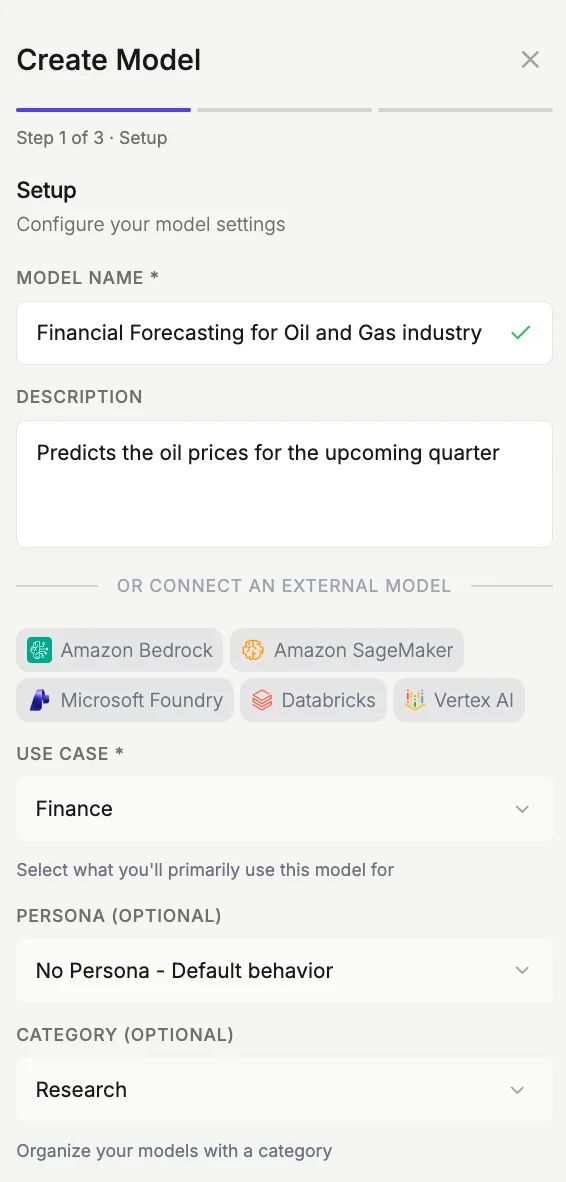
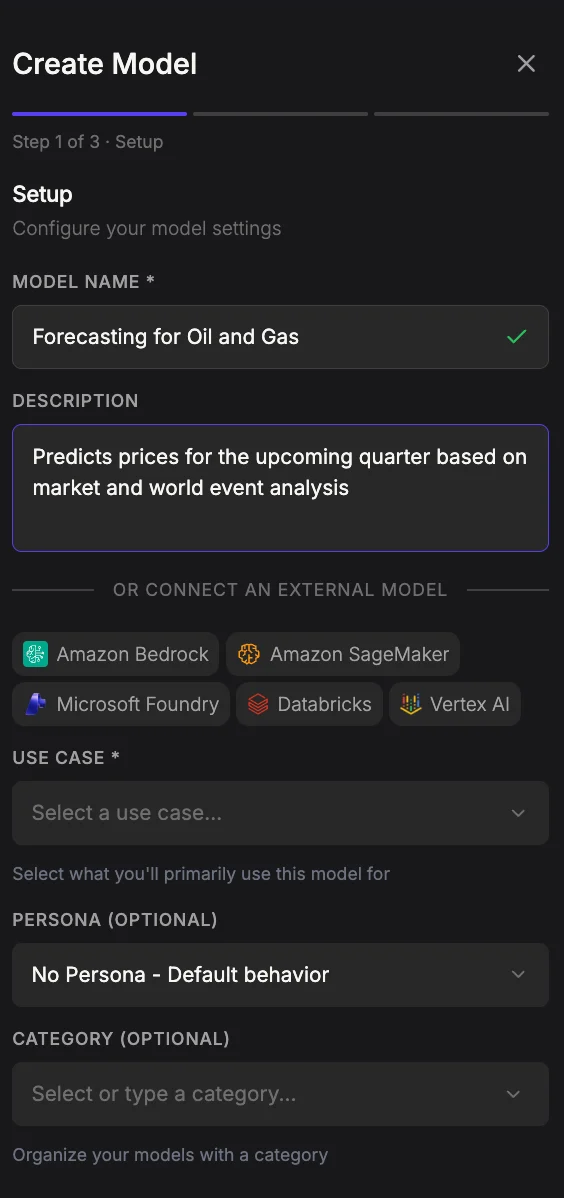
- Step 1 of 3: Model Settings. Click the ‘Create Model’ button and select ‘Advanced Mode’ to begin creating your model. Configure the basics for your model, then click ‘Next’:
- Name (required): Enter a name for your model.
- Description (required): Briefly describe what the model is for.
- Use Case (required): Select the use case that best matches your model’s purpose.
- Persona (optional): Apply a persona to shape the model’s tone. See Personas.
- Category (optional): Tag the model with a category for organization.
- Base model / External provider: By default, the model runs on
gpt-oss-120b. To use a different foundation model, select an externally connected provider (e.g. Amazon Bedrock, Google Vertex AI, Amazon SageMaker, or Microsoft Foundry). See Add Integrations & Data Sources for setup.
- Step 2 of 3: Upload data. Add training data to your model. Select a data source using the tab selector at the top, or pick a pre-existing dataset from the Or use an existing dataset dropdown at the bottom.
- Upload (default): Select local files using the Choose a File button. Multiple files can be uploaded at once. Supported formats include:
- Data: CSV, TSV, PARQUET, JSON, JSONL
- Documents: PDF, DOCX, MD, TXT
- Code: PY, JS, TS, SQL, and many others
- Archives: ZIP Maximum file size is 2,000 MB, with a total upload cap of 2,000 MB.
- Integrations: Pull data from a connected integration (e.g. Hugging Face, S3, Google Drive).
- URL: Import data from a public web URL.
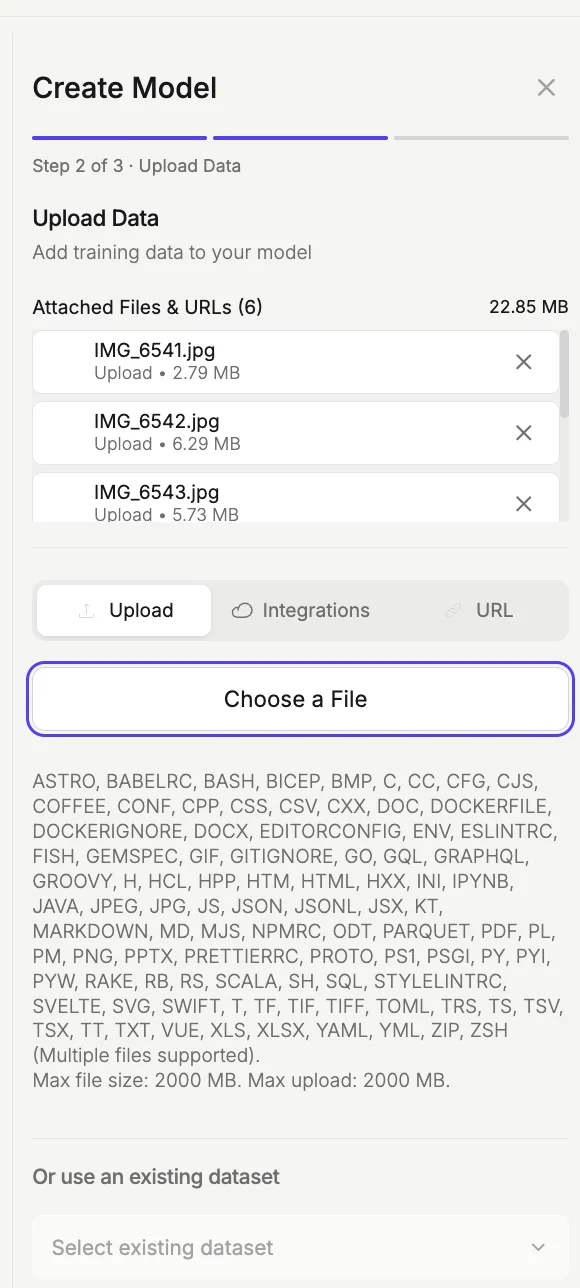
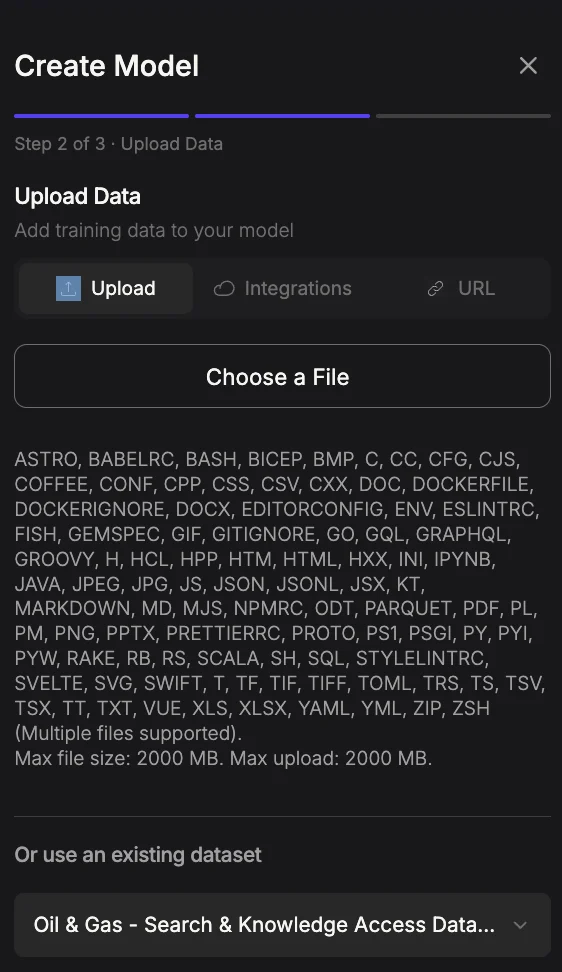
- Click ‘Next’ to proceed to the next step.
- Step 3 of 3: Review. Verify your configuration before model creation begins. The review screen shows a read-only summary of the choices made in the previous steps in a two-column label/value layout:
Review each field for accuracy. To correct a value, navigate back to the relevant step. When everything looks correct, click ‘Create Model‘ to finalize your model creation.