

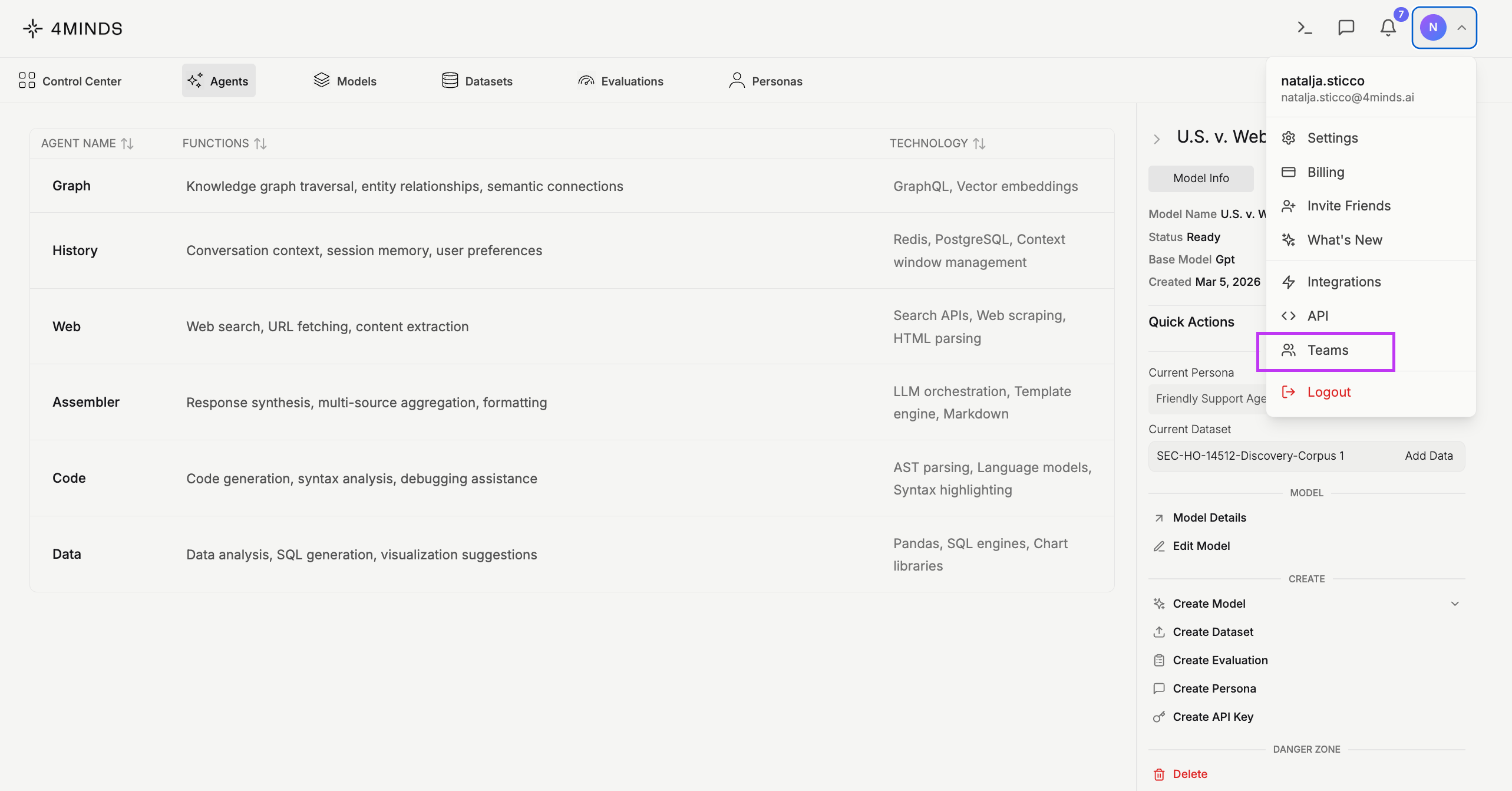
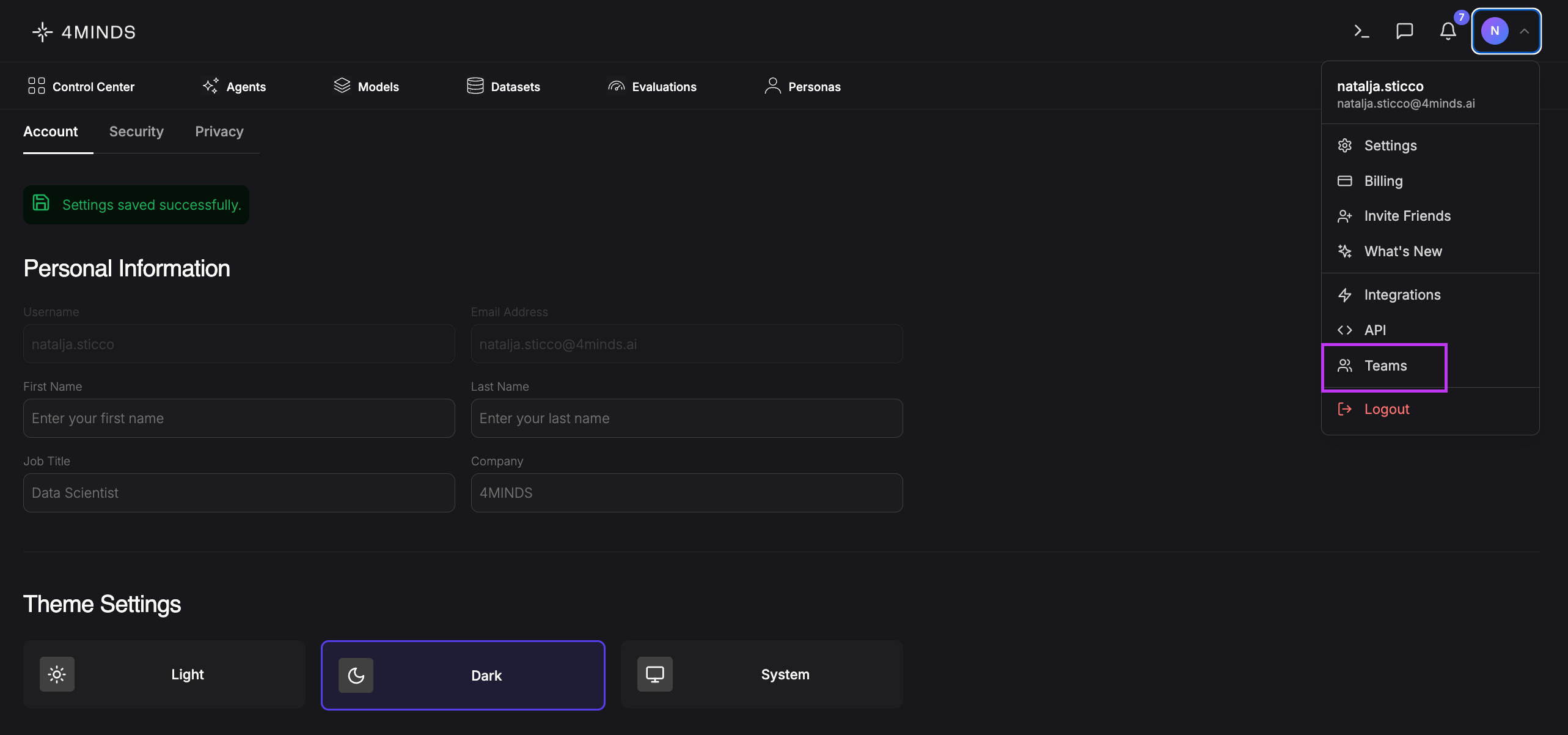
Availability: Teams functionality is available on all paid plans. Seat limits and advanced features (SSO, audit logs) vary by tier.
Roles & Access Levels
Organization Roles
Access Levels
Access levels control what users can do with resources across the platform. They appear throughout the UI and are assigned per member.Note: Access levels map to subscription tiers - Pro/Teams/Teams Plus users receive Plus access; Enterprise users receive Admin access by default.
Organization Panel
At the top of the page, your Organization card displays:- Organization name
- Your role (e.g., Owner)
- Current subscription tier (e.g., Enterprise)
- A summary of total members and total teams
Teams List
The main area of the Teams tab displays all teams within your organization as Team Cards. Each card shows:- Team name and description
- Member count
- Your role badge within that team
- Linked SSO providers (if configured)
- Public/Private visibility status
Creating a Team
Click + Create New Team from the Quick Actions panel. The creation modal includes:- Team Name (required)
- SSO Auto-Membership configuration (optional): configure during creation to automatically provision members from an SSO group:
- SSO Provider
- Identifier type
- Group identifier
- Default permission level for auto-provisioned members
Nested Teams
Teams support a parent-child hierarchy. When creating or editing a team, you can optionally assign a parent team to build structured team trees within your organization.Public vs. Private Teams
Each team has a visibility flag:- Public: Visible to all organization members
- Private: Only visible to team members and admins
Team Detail View
Clicking into a team opens its detail view, which includes a full members table with the following columns:Member Management
- Members must be organization members first before being added to a team
- When adding a member, specify their access level (Basic / Plus / Admin)
- Member permissions can be updated after joining via the permissions panel
- Use the search/filter bar to find members within large teams
- Bulk operations: select multiple members and bulk remove them. Removal requires typing
REMOVEto confirm
Note: The organization owner cannot be removed or have their role changed.
Team Settings Panel
Each team has a dedicated settings panel (accessible from the team detail view) displaying:- Stats: Members, Admins, Pending Invites
- Editable team name
- SSO Auto-Membership mappings: configure which SSO groups automatically provision members into this team:
Each SSO mapping includes a default permission level for auto-provisioned members.
Invitation System
Admins can invite new users to the organization. Invitations support:- Statuses: Pending, Accepted, Declined, Expired, Revoked
- Auto-join: Specify a team and access level so the user is automatically placed on acceptance
- Seat limit enforcement based on your subscription tier
- Privacy-conscious design: the system does not reveal whether an email address already has an account
Shared Resources
The Shared Resources section displays all models and datasets shared with you by other organization members. It is divided into two sub-tabs:Shared Models
Displays a table of all models shared with you:If no models have been shared yet, a “No Shared Models” placeholder will be displayed.
Shared Datasets
Displays datasets shared with you by other team members. A dataset can be shared with the entire organization, specific teams, or individual users.Organization Settings Panel (Right Sidebar)
The right-hand sidebar provides quick access to your organization’s configuration and key stats.Summary Stats
General Settings
- Org Name - View or update the display name of your organization.
- Current Tier - Displays the active subscription plan. Read-only.
- Allowed Email Domains - Define which email domains are permitted to log in via SSO and be auto-matched to your organization. Add new domains via the input field and + Add button, or remove existing ones using the delete icon.
AD/LDAP Integration
The AD/LDAP Integration tab allows you to connect 4minds.ai to your directory service for centralized authentication. Azure AD mode requires:- Tenant ID, Client ID, Client Secret
- Enable/disable toggle
- Server URL, Bind DN, Bind Password
- Base DN, User Search Filter, Group Attribute
- SSL/TLS and STARTTLS options
- Certificate validation toggle
- Test Connection button with live status feedback
- AD Preview showing mapped groups
- Auto-team creation from AD/LDAP groups
Quick Actions
Located at the bottom of the right sidebar:- + Create New Team: Set up a new team within your organization.
- + Add Member(s): Invite new users to join your organization.
Audit Trail
All RBAC actions - role changes, permission grants, member additions and removals - are logged in a full audit trail with actor, target, resource, IP address, and timestamp. Audit logs are available on Teams tier and above.Organization Deletion
Only the Owner can delete an organization. Deletion requires a confirmation step. Upon deletion, resources (models, datasets, etc.) are orphaned but not deleted.Tips
Access Levels are core: Basic, Plus, and Admin access levels appear throughout the UI. Make sure members are assigned the right level when they join a team.
SSO Auto-Membership saves time: Configure SSO group mappings on your teams so new hires are automatically provisioned to the right teams on first login - no manual steps required.
Use nested teams for large orgs: Parent-child team hierarchies help organize departments and sub-teams without losing visibility across the org.
Organization Panel
At the top of the page, you will see your Organization card displaying:- Organization name (e.g., 4minds.ai)
- Your role within the organization (e.g., Owner)
- Current subscription tier (e.g., Enterprise)
- A summary of total members and total teams belonging to the organization
Shared Resources
The Shared Resources section allows you to view all models and datasets that other team members have shared with you. It is divided into two sub-tabs:Shared Models
Displays a table of all models shared with you, including the following columns:If no models have been shared yet, a “No Shared Models” placeholder will be displayed.
Shared Datasets
Displays datasets shared with you by other team members. Switching to this sub-tab will list all available shared datasets in your organization.Organization Settings Panel (Right Sidebar)
The right-hand sidebar provides quick access to your organization’s configuration and statistics.Summary Stats
General Settings
- Org Name – View or update the display name of your organization.
- Current Tier – Displays the active subscription plan (e.g., Enterprise). This is read-only.
- Allowed Email Domains – Define which email domains are permitted to log in via SSO and be auto-matched to your organization. You can add new domains using the input field and the + Add button, or remove existing ones using the delete icon.
AD/LDAP Integration Tab
Switching to this tab allows you to configure Active Directory or LDAP-based authentication for your organization.Quick Actions
Located at the bottom of the right sidebar, Quick Actions give you fast access to common team management tasks:- + Create New Team – Set up a new team within your organization.
- + Add Member(s) – Invite new users to join your organization.
Tips
Note: Only users with Owner or Admin roles can modify Org Settings and manage members.
SSO Tip: Domains added under Allowed Email Domains enable seamless SSO onboarding. Users with matching email addresses will be automatically associated with your organization upon login.