

Overview
The 4Minds platform integrates with popular data platforms to streamline your workflow. Instead of manually downloading and uploading files, connect directly to your existing data sources and import what you need.Some integrations require setup on the provider’s side before they’ll work in 4Minds. For example, foundation models on Amazon Bedrock must be requested and approved in your AWS account before you can use them in 4Minds. Integrations with provider-side prerequisites include a Provider prerequisites section in their entry below: complete those steps in the provider’s console before connecting in 4Minds.
Supported Integrations
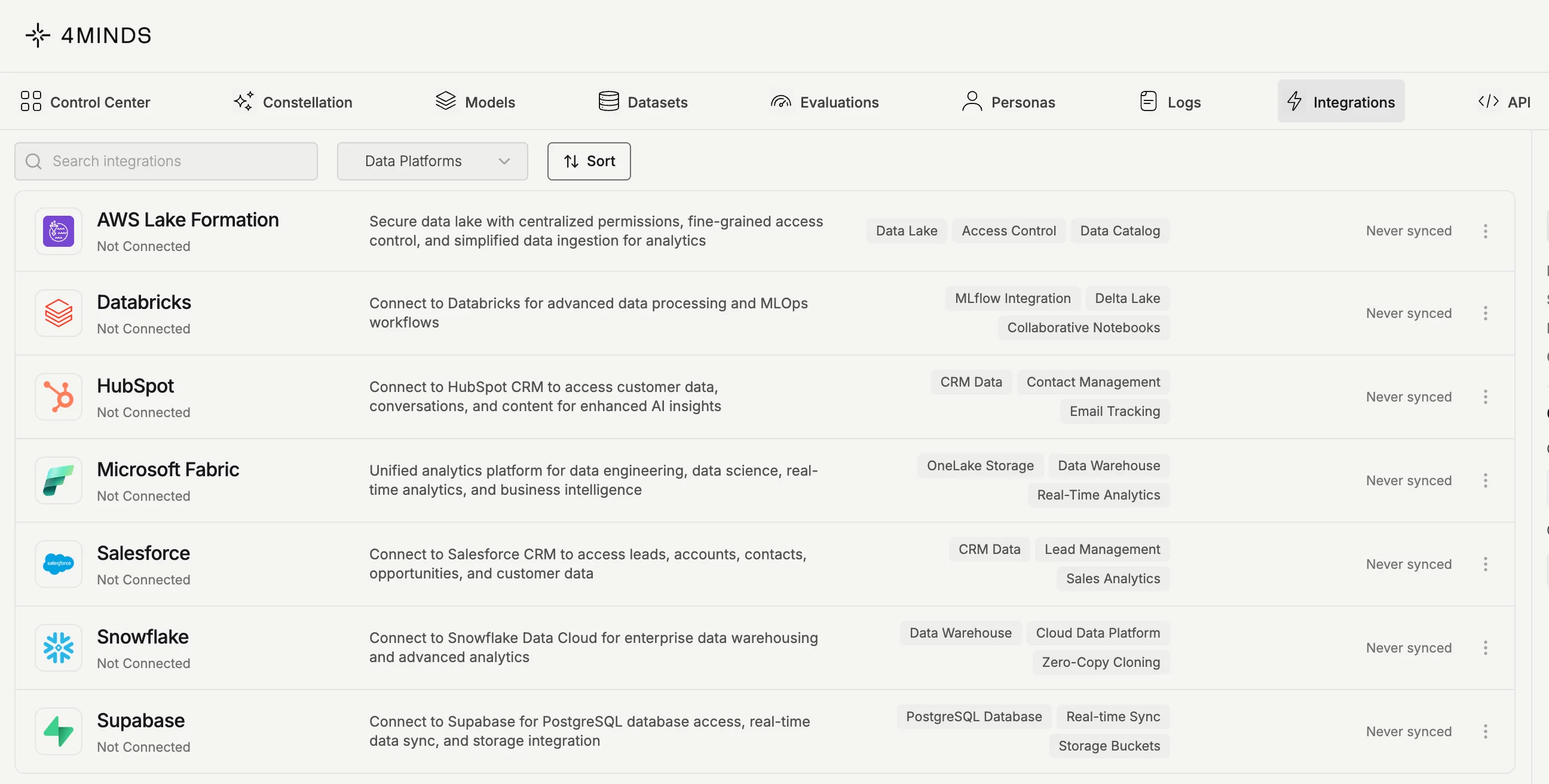
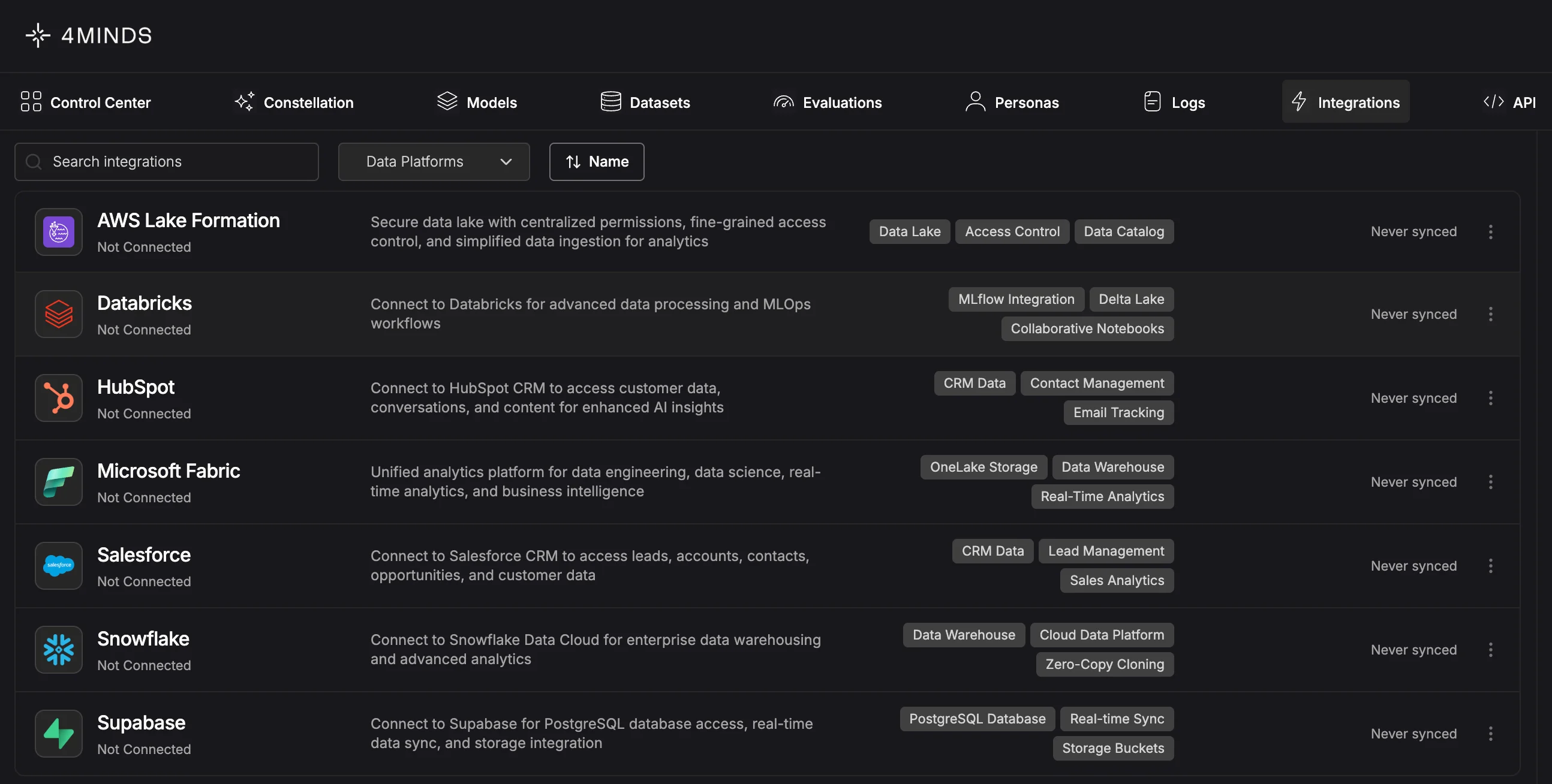
Featured
HubSpot
Connect to HubSpot CRM to access customer data, conversations, and marketing content for enhanced AI insights. Import contact records, deal information, email interactions, and content assets directly into your 4Minds workspace to power customer-aware AI experiences. See the HubSpot integration guide for setup details.Amazon Bedrock
Connect to Amazon Bedrock to create models from AWS-managed foundation model endpoints. Access AWS’s fully managed service for foundation models and integrate them directly into your 4Minds workflows. See the Amazon Bedrock integration guide and the AWS Integrations guide for setup details. Provider prerequisites Before connecting Bedrock to 4Minds, complete the following in your AWS account:- Request access to the foundation models you want to use in Amazon Bedrock → Model access.
- Wait for each model’s status to show Access granted (some models require AWS approval).
- Confirm your IAM role has
bedrock:InvokeModelpermission for the granted models.
Databricks
Link your Databricks workspace to pull data from tables, notebooks, and files. This integration lets you leverage existing data pipelines without duplicating storage or creating manual export processes. See the Databricks integration guide for setup details.Microsoft
Microsoft 365
Connect to Microsoft 365 for seamless access to emails, calendars, OneDrive files, Teams messages, and OneNote. Integrate your Microsoft 365 ecosystem to leverage organizational knowledge and collaboration data.Microsoft Foundry
Connect to Microsoft Foundry to create models from external models you’ve deployed on the Foundry platform. Leverage your existing Foundry deployments to power AI experiences on 4Minds without redeploying infrastructure. See the Microsoft Foundry integration guide for setup details.Microsoft SharePoint
Connect to Microsoft SharePoint to access documents and files stored in your organization’s SharePoint sites. Import data directly from SharePoint libraries, maintaining your existing document management workflows.Azure Blob Storage
Connect to Azure Blob Storage to access your cloud-stored datasets and files. Import data directly from your Azure containers without manual downloads, maintaining your existing cloud storage infrastructure.Sync scope: The integration does not sync every file your credentials can reach. It syncs everything inside the scope you connected: current files, future files, and any new subfolders added later.
Microsoft Fabric
Connect to Microsoft Fabric to access your unified analytics platform data. Browse and import directly from your Fabric Lakehouses (files) and Warehouses (tables), leveraging Microsoft’s end-to-end analytics solution for seamless data integration. See the Microsoft Fabric integration guide for setup details.Microsoft 365 Copilot
Install the 4Minds agent inside Microsoft 365 Copilot to chat with your custom 4Minds models from anywhere Copilot appears: Teams, Office on the web, and the Office desktop app for Windows. Ask questions and get answers grounded in your organization’s own documents, specifications, and playbooks. See the Microsoft 365 Copilot guide for install and setup details.Google Workspace
Connect to Google Workspace (GSuite) to access organizational data across Gmail, Drive, Calendar, and Docs. Import emails, files, events, and documents directly into your 4Minds workspace to build AI models with broad team and organizational context.Google Vertex AI
Connect to Google Vertex AI to create models on the 4Minds platform from your existing Vertex AI deployments. Leverage your trained Vertex AI models and endpoints to power AI experiences without duplicating model infrastructure.Google Drive
Connect to Google Drive to access documents, spreadsheets, presentations, and files stored in your Drive. Import data directly from your personal or shared drives, maintaining your existing Google Workspace workflows.Google Cloud Storage
Connect to Google Cloud Storage to access your cloud-stored datasets and files. Import data directly from your GCS buckets without manual downloads, maintaining your existing Google Cloud storage infrastructure.Amazon
Amazon S3
Connect to Amazon S3 to access your cloud-stored datasets and files. Import data directly from your S3 buckets without manual downloads, leveraging your existing AWS storage infrastructure. Setup requirements:- An IAM role in your AWS account that 4Minds can assume (via IAM Role Federation or Amazon Cognito).
- The role must have, at minimum,
s3:GetObjectpermission on the buckets you want to expose. Scope the policy to specific bucket ARNs (e.g.,arn:aws:s3:::my-bucket/*) so only allowed buckets are accessible.
AWS Lake Formation
Connect to AWS Lake Formation to access governed data lakes with fine-grained access controls. Import datasets directly from your Lake Formation-managed catalogs, leveraging AWS’s centralized data governance for secure, compliant data integration. See the AWS Integrations guide for setup details.Amazon SageMaker
Connect to Amazon SageMaker to create models on the 4Minds platform from your existing SageMaker models. Leverage your trained SageMaker models and endpoints to power AI experiences without duplicating model infrastructure. See the AWS Integrations guide for setup details.Amazon RDS
Connect to Amazon RDS to browse your managed relational databases (PostgreSQL, MySQL, MariaDB, Aurora) and import tables as datasets. 4Minds discovers instances via IAM and opens a live SQL connection to each instance only when you choose to browse its databases: master DB credentials stay in your browser and are never persisted. See the Amazon RDS integration guide for setup details.Enterprise
Databricks
Link your Databricks workspace to pull data from tables, notebooks, and files. This integration lets you leverage existing data pipelines without duplicating storage or creating manual export processes. See the Databricks integration guide for setup details.Snowflake
Connect to Snowflake to access your data warehouse tables and views. Import structured data directly from Snowflake without manual exports, leveraging your existing data warehouse infrastructure.dbt
Connect to dbt Cloud to import your project’s metadata (model definitions, sources, tests, exposures, and account structure) for AI-powered analysis. Connect read-only via OAuth or with a service token. See the dbt integration guide for setup details.HubSpot
Connect to HubSpot CRM to access customer data, conversations, and marketing content for enhanced AI insights. Import contact records, deal information, email interactions, and content assets directly into your 4Minds workspace to power customer-aware AI experiences. See the HubSpot integration guide for setup details.Salesforce
Connect to Salesforce CRM to access leads, accounts, contacts, opportunities, and customer data. Import your sales pipeline, customer records, and business analytics directly into 4Minds to build AI models with comprehensive CRM knowledge.General Use
HuggingFace Hub
Connect to the HuggingFace Hub to access thousands of public datasets and models. Browse available resources, preview metadata, and import datasets directly into your 4Minds workspace.Box
Connect to Box to access your cloud-stored documents and files. Import data directly from your Box folders without manual downloads, leveraging your existing Box storage infrastructure for seamless collaboration and file management.Slack
Connect to Slack to access workspace messages, channels, and conversation history. Import team communications and knowledge shared across channels to build AI models that understand your organization’s context and discussions.Dropbox
Connect to Dropbox to access your cloud-stored files and folders. Import documents and data directly from your Dropbox account without manual downloads, leveraging your existing file storage infrastructure.Additional Integrations
CoreWeave Storage
Connect to CoreWeave Storage to access your datasets stored on CoreWeave’s high-performance cloud infrastructure. Import data directly from your CoreWeave storage without manual transfers.NetApp
Connect to NetApp storage systems to access your enterprise data and files. Import data directly from NetApp storage volumes, leveraging your existing enterprise storage infrastructure for seamless data integration.Supabase
Connect to Supabase to access your PostgreSQL databases, storage buckets, and real-time data. Import tables and files directly from your Supabase projects, leveraging your existing backend infrastructure for seamless data integration.Splunk
Connect to Splunk to access machine data, logs, and analytics. Import search results and indexed data directly from your Splunk deployment to build AI models with operational intelligence and observability insights.ServiceNow
Connect to ServiceNow to access IT service management data, incident records, and knowledge base articles. Import tickets, workflows, and operational data directly into 4Minds to build AI models with enterprise IT knowledge.Gong
Connect to Gong to import revenue intelligence and sales conversation data (including call recordings, transcripts, user profiles, activity stats, scorecards, and CRM data) directly into your 4Minds datasets. See the Gong integration guide for setup details.How it Works
- Connect - Authenticate with your external platform using API keys or OAuth
- Browse - Explore available datasets and resources from the connected source
- Import - Select the data you want and initiate the import process
- Track - Monitor import progress with real-time status updates
- Validate - Confirm successful connections and data integrity before training
Upload Size Limit
- The Enterprise tier allows up to 2 GB per batch, but uploads are backed by Azure Blob Storage, which enforces a 100 MB limit per request. In practice, this means each upload request is capped at 100 MB: anything larger must be split into multiple 100 MB batches.
- This applies to single files, multiple files, and integration datasets. A progress bar will display the total upload size.
- To upload more data, simply reopen the dataset and upload the next 100 MB batch.
There is no limit on the overall dataset size, only on each individual upload request. The Enterprise tier permits up to 2 GB total per upload session, but it must be delivered in batches of 100 MB or less due to the Azure Blob Storage per-request limit.
Managing Connections
All active integrations appear in your Control Center. You can:- View connection status and last sync time
- Test connections to verify they’re working
- Update credentials or permissions
- Disconnect sources you no longer need
Automatic Data Synchronization (Rsync)
Keep your datasets current with automatic synchronization from connected integrations. When you create a dataset from an integration source (like a OneDrive folder), 4Minds saves a manifest tracking the files in that location. Each time you log in, the platform checks your connected sources for new files and automatically fetches any additions to your dataset. How it works:- Create a dataset from an integration source (e.g., a OneDrive folder)
- 4Minds stores a manifest of the files at creation time
- On each login, the platform compares the current source contents against the manifest
- New files are automatically retrieved and added to your dataset