

Overview
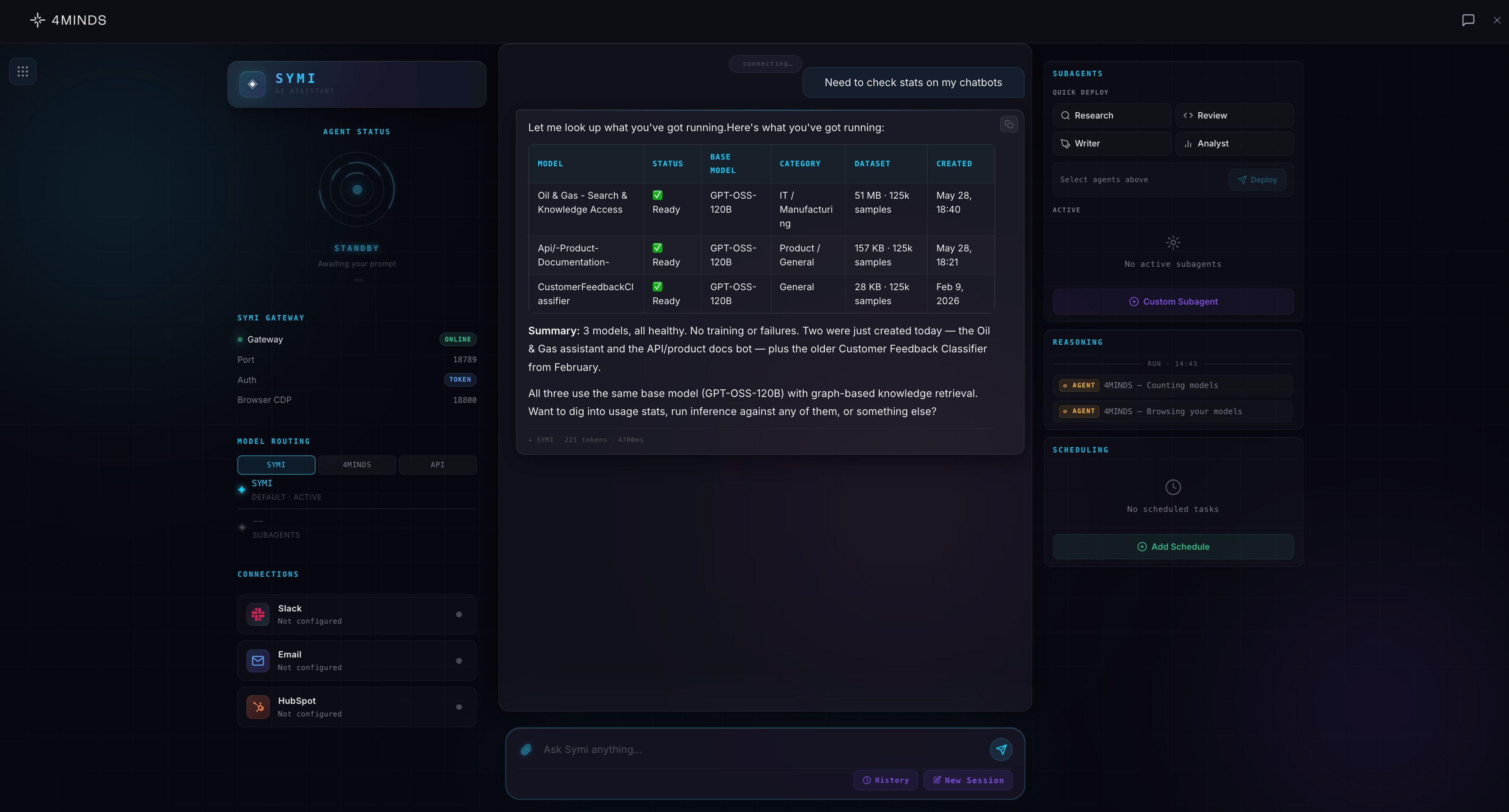
SYMI can be used autonomously on its own base model, or integrated with any 4MINDS model you have trained to query your own data.
What you can do with SYMI
- Create documents and reports. Generate PowerPoint presentations, Word documents, Excel workbooks, PDFs, and executive reports.
- Build and publish websites. Create responsive websites and share them through published links.
- Analyze business data. Explore files to identify trends, risks, anomalies, and actionable insights.
- Work with connected tools. Use 4MINDS models, datasets, and knowledge graphs alongside Outlook, Slack, HubSpot, and connected APIs.
- Follow work as it happens. Review plans, progress, agent activity, and generated outputs through Symframe.
- Keep work across sessions. Access saved outputs and securely synchronize files to a local computer with Workspace Mirror.
Explore SYMI
Memory
What SYMI recalls from earlier conversations, and how to keep it accurate.
Persistent Workspace
Which files survive past the current conversation and which don’t.
Skills, Sub-Agents, and Tools
The three building blocks SYMI composes to actually do the work.
Workspace Mirror
Sync your SYMI workspace to a computer you enroll.
Workspace Mirror setup
Install the SYMI Mirror client, enroll a device, and manage the sync service.
Security & Isolation
How your files, memory, and workspace stay scoped to your account.
A more connected SYMI experience
SYMI is available in more places across the platform, with smoother transitions between conversations:- SYMI in Control Center and FourChat. Get answers grounded in the selected 4MINDS model’s data, with web search and image generation available per message.
- Continue in SYMI. Open SYMI directly from the sidebar, or bring the current model and conversation into SYMI for full functionality.
- Work continues across views. In-progress responses remain visible across SYMI, Control Center, and FourChat, even when SYMI is closed.
- Expanded integrations. Connect to HubSpot and REST APIs, and include attachments when sending or replying to Outlook emails.
- Refreshed interface. Improved mobile layouts, more response space, collapsible panels, and easier model switching.
Key components
SYMI is composed of six core components that work together to power agentic workflows:Model Router
The Model Router controls which 4MINDS model SYMI uses to answer a query or complete a task. By default, SYMI uses its own base model (currently DeepSeek 0731). You can configure the router to direct requests to any trained model in your workspace. SYMI can intelligently query across multiple models when instructed, for example, routing a security question to your SOC model while routing a product question to your general knowledge model. To configure the Model Router:- Open SYMI from the main navigation.
- Navigate to Model Router settings.
- Select the default model for general queries.
- Configure per-sub-agent model routing for specialized workflows.
Connections
Connections link SYMI to external systems so it can receive triggers, read data, and push outputs.Supported connections
Setting up a Gmail connection
Gmail auto-trigger is the recommended approach for event-driven agentic workflows. Example use case: a ServiceNow ticket is created → an automated email is sent to a SYMI-monitored Gmail inbox → SYMI reads the email, queries your knowledge graph, and responds with recommended next steps. Steps:- In SYMI, navigate to Connections.
- Select Gmail and authenticate with the account you want SYMI to monitor.
- Configure the trigger condition (e.g. all inbound mail, or filtered by subject/sender).
- Link the trigger to a sub-agent or workflow.
Use a dedicated Gmail account for SYMI integrations. Do not connect a personal or primary production inbox.
Sub-agents
Sub-agents are specialized agents you deploy within SYMI for specific tasks. Each sub-agent has:- A label: a name identifying its purpose (e.g. “RFP Responder”, “SOC Triage Agent”).
- A task prompt: the instructions that define what the sub-agent does and how it should behave.
- A model routing assignment: which 4MINDS model the sub-agent queries.
Example: RFP response workflow
A pre-built example of what a sub-agent workflow looks like end-to-end:- SYMI monitors a Gmail inbox for emails with “RFP” in the subject line.
- On trigger, the sub-agent extracts the scope and requirements from the email body.
- SYMI queries the connected 4MINDS model (trained on your proposals and org knowledge) to generate a draft response.
- The draft is pushed to HubSpot for internal review and approval before any external send.
Scheduler
The Scheduler lets you run SYMI workflows on a recurring cadence without needing an inbound trigger. Jobs are configured using cron-style timing: hourly, daily, weekly, or a custom interval. Example use cases:- Run a threat intelligence summary every morning at 7 AM using your SOC model.
- Poll an S3 bucket every few hours for new log events and produce an incident report.
- Send a weekly digest of new HubSpot activity to a Slack channel.
- In SYMI, navigate to Scheduler.
- Click + New Job.
- Define the task (either a sub-agent or a direct prompt).
- Set the schedule interval.
- Activate the job.
Reasoning Log (Constellation)
Every SYMI session generates a Reasoning Log: an audit trail of the steps SYMI took to arrive at its output. This is powered by Constellation, 4MINDS’ structured cognitive reasoning system. The Reasoning Log shows a summary-level view of SYMI’s thinking steps. It does not expose the full context window. What the Reasoning Log captures:- Which models were queried.
- What sub-agents were invoked.
- Key reasoning steps and decision points.
- What was sent to external systems.
Slash commands
SYMI supports a library of slash commands in the Chat Window for quick access to platform controls during a session. The slash command toolkit covers:
Type
/ in the SYMI Chat Window to browse available commands.
Example architecture: email-triggered agentic workflow
The following illustrates a complete event-driven workflow using SYMI’s Gmail auto-trigger:Frequently asked questions
Can SYMI query multiple models in a single session? Yes. You can configure sub-agents to route to different models, allowing a single SYMI workflow to pull from multiple knowledge sources, for example, your SOC model for security context and your General KB model for company policy. Can I use SYMI without a Gmail account? Yes, but auto-triggering on inbound email requires Gmail at this time. Outlook users can configure the Scheduler to poll their inbox at regular intervals as a workaround. Broader auto-trigger support for Outlook and other providers is on the roadmap. Is SYMI the right place to define role-specific context for my AI? Yes. For system-level role definitions like “You are a cybersecurity expert in a SOC”, use the sub-agent task prompt in SYMI. The Persona feature at the model level controls tone and communication style only, not role context. Does SYMI have access to my knowledge graph directly? SYMI queries your 4MINDS models, and those models are connected to your knowledge graph. SYMI does not access the Synthesis Graph™ directly: all knowledge retrieval happens through model inference endpoints.Next steps
Add Integrations & Data Sources
Connect external data sources to the models SYMI will query
Explore the Model Dashboard
View and manage the models available for SYMI to route to
Personas
Understand the difference between Personas and SYMI sub-agent task prompts
Key Terms & Concepts
Explore definitions for SYMI, sub-agents, and agentic workflows