

To work with the files on your own computer, use the 4Minds Symi CLI. You install it once and start it with
symi.Before you begin
- Sign in to SYMI in your browser. You need it to approve the link.
- You don’t need Node.js, npm, pnpm, Git, Homebrew, or administrator rights.
- On Linux,
curl,tar,gzip, andpsmust be available. Minimal Linux images may need theprocpsandca-certificatespackages.
Install and link
1
Open the installer in SYMI
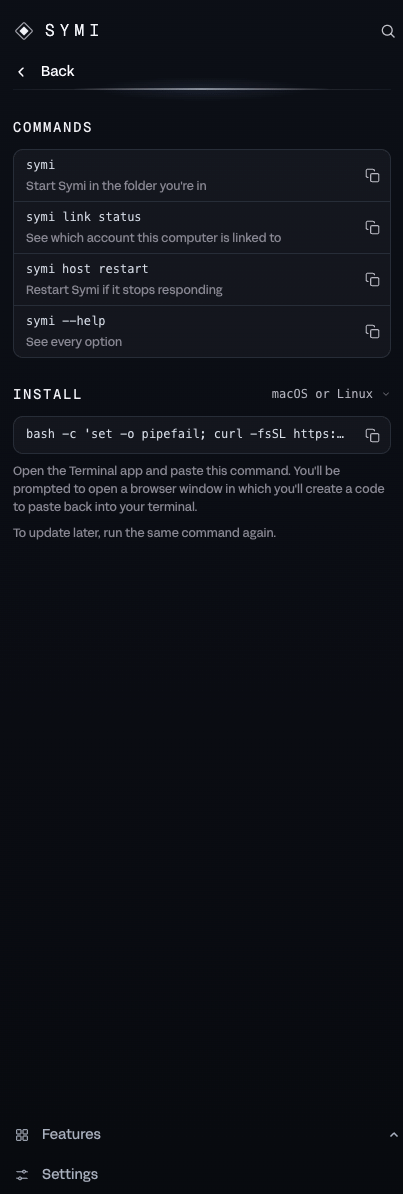
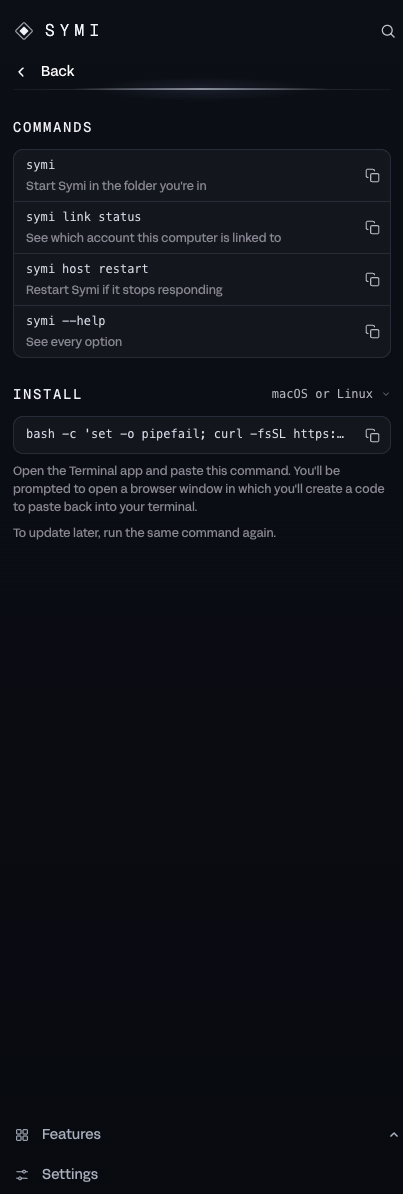
In SYMI, select Features, then Symi CLI. The panel has two parts: Commands and Install.
2
Choose your system
In the list beside Install, select macOS or Linux, Windows (PowerShell), or Windows (WSL). SYMI preselects the option that matches your browser.
3
Copy and run the command
Select the copy button next to the command. Paste it into Terminal (macOS, Linux, WSL) or PowerShell (Windows) and press Enter. The command installs or updates the CLI, opens the account approval page, and starts the CLI after linking.
4
Approve the link in your browser
Your browser opens Link 4Minds Symi CLI. If it doesn’t open, use the address the terminal prints. Sign in to SYMI if asked. Confirm that the Check code matches the one in your terminal, then select Create link code.
5
Enter the code
Type the code at the
Link code: prompt and press Enter. The code works once and expires after a short time. If it expires, select Create a new code.Linked this installation to <your email> and the date the link expires. A link lasts 90 days. SYMI then opens in your terminal. When the link expires, run symi link again.
~/.fourminds-symi-cli (Windows: %USERPROFILE%\.fourminds-symi-cli), and adds symi to your path. Open a new terminal window if the command isn’t found.
Start the CLI
Open a terminal in the folder you want to work in and run:fourminds-symi still works. If another program on your computer already uses the name symi, the installer leaves it alone, and you start the CLI with fourminds-symi. A version from before November 18, 2026 has only fourminds-symi until you update.
The folder where you start the CLI is your workspace. To use another folder or reopen a session:
y to allow once or n to reject.
Commands
Type/ to see the list. Use the arrow keys to choose, Enter to run, Tab to complete, Esc to close.
The CLI uses one model, SYMI’s default model. Use
/effort to choose High or Max.What SYMI can do in the CLI
SYMI works with the files in your folder. It can read and edit files, run commands, and search the web. It can also create Word, Excel, and PowerPoint files. Type/tools to see the tools available in your session. Type /skills to insert a skill into your message.
When you ask SYMI to search the web, the search goes through your linked 4Minds account. If you aren’t linked, SYMI doesn’t search.
Sub-agents
SYMI can hand parts of a task to helper agents. Type/work or press Ctrl+W to see your conversations, the helper agents, and background jobs. When you stop a reply, SYMI also stops its helper agents and background commands.
Reminders
Ask SYMI in the terminal to remind you later, for example “remind me in 2 hours to check the build”. Reminders belong to the current session and return to it as a new message when they are due.- You can set a delay, an exact date and time with a time zone, or a repeating interval.
- Reminders do not use cron expressions.
- SYMI delivers a reminder while the SYMI background service is running on your computer, even if you closed the terminal. Reminders do not send email or chat messages.
- If several intervals were missed, SYMI delivers only the latest one.
Keys
How the CLI differs from SYMI on the web
- The CLI uses SYMI’s default model. It does not use your 4Minds models. Reasoning is High or Max. The context window is up to about 524K tokens.
- Work happens in a folder on your computer. Sessions stay on your computer. Memory is on by default and stays on your computer.
- Connections (Outlook, HubSpot, and Slack) are available in SYMI on the web only.
- The CLI has its own commands. The web commands
/help,/status,/stop,/reset,/new, and/modelare not available in it.
Manage your account link
link statusshows the linked account and when the link expires.linklinks again after a link expires or is revoked. You don’t need to reinstall.unlinkrevokes the link on 4Minds and removes it from this computer.unlink --no-revokeremoves the link from this computer without contacting 4Minds. The key stays valid until it expires or an account admin revokes it on the API Keys page.
link through a different 4Minds address while already linked, the CLI asks whether to unlink and link again.
An account admin can also revoke a link on the API Keys page (in 4Minds, open Settings > Security and select Manage API Keys). The key name starts with Symi CLI and ends with your computer’s name. Links made before November 12, 2026 start with FourMinds Symi CLI. If you are not an account admin, run symi unlink instead.
Update
Close open CLI sessions. Then run the command from Features > Symi CLI again. A version from before November 13, 2026 can’t search the web until you update. Your data and account link are kept. If a message asks you to run a command again, it prints the whole command for you to paste.Uninstall
Use the address in the command you copied from the panel: the part before/install.sh or /install.ps1. Run it with the uninstall option.
macOS, Linux, or WSL:
--purge (-Purge on Windows). In a terminal you type purge to confirm. In a script, add --yes (-Yes on Windows).