

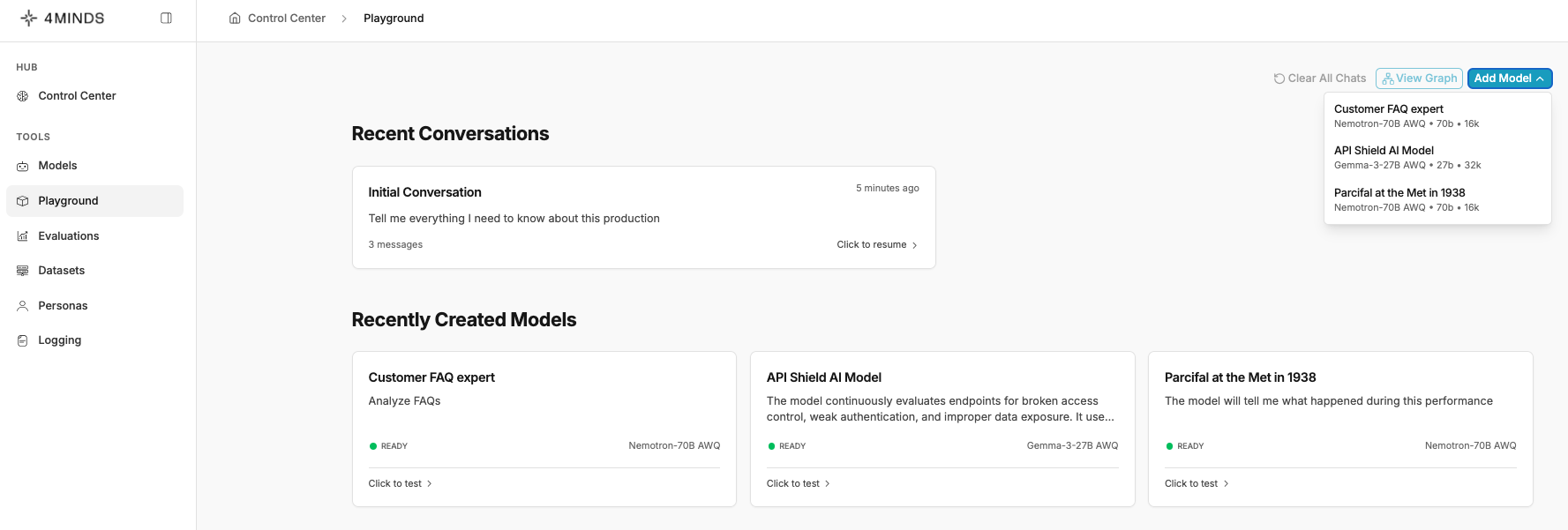
First Interaction
Type your prompt into the text input field at the bottom, then press Enter or click the ‘Submit’ button. The AI will process your request and display the results. Review the response and refine your prompt as needed.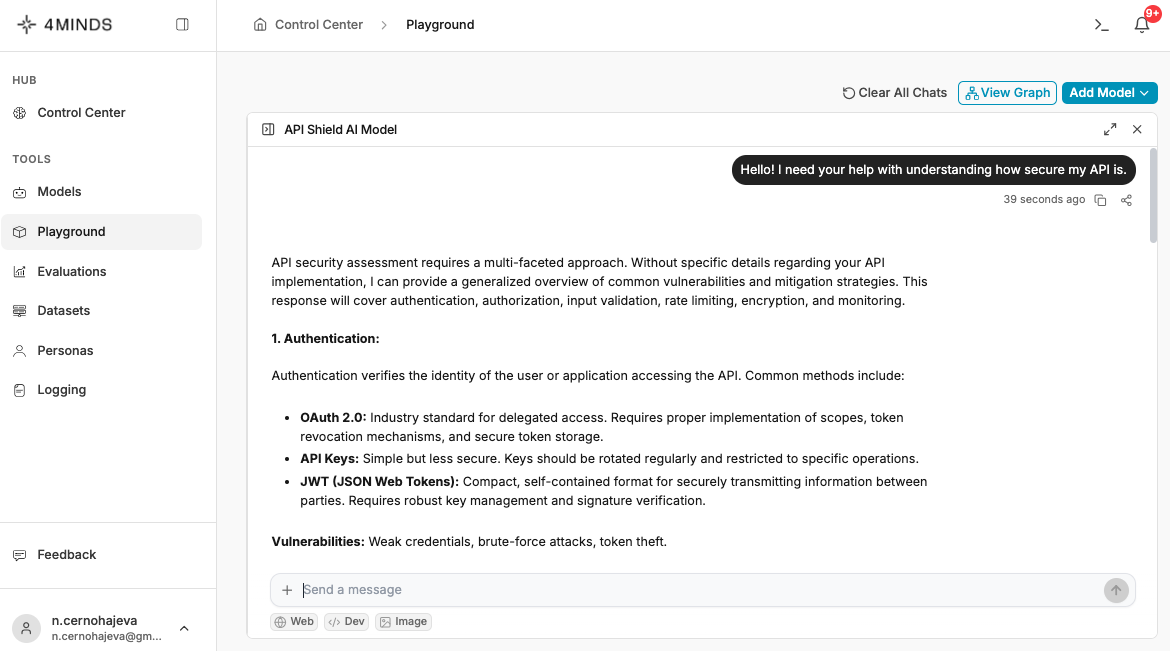
Response Metadata

- Generation timestamp
- Action buttons (copy, regenerate, share your insight)
Dev Mode includes additional metadata. Please refer to the Dev Mode Performance Metrics section for more details.
Interface Layout
Action Buttons (Top Right)

- Clear All Chats - Removes all conversation history from current session
- View Graph - Opens visual representation of model architecture or workflow
- Add Model - Dropdown menu to add or switch between AI models
Operating Modes
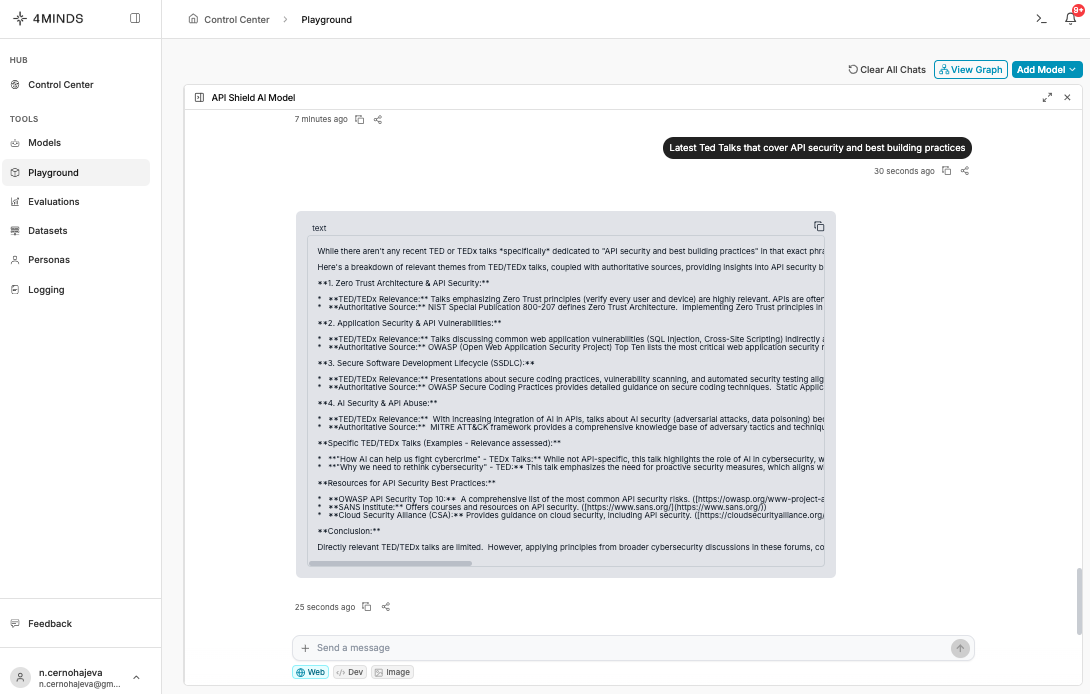
The Playground supports three primary operating modes, selectable via tabs in the input area:Web Mode
Purpose: Internet-connected AI interactions Use Cases:- Real-time information retrieval
- Web research and fact-checking
- Current events and news
- API integrations requiring live data
Dev Mode
Purpose: Development-focused interactions Use Cases:- Code generation and debugging
- API documentation and examples
- Technical problem-solving
- Architecture discussions
- Development best practices
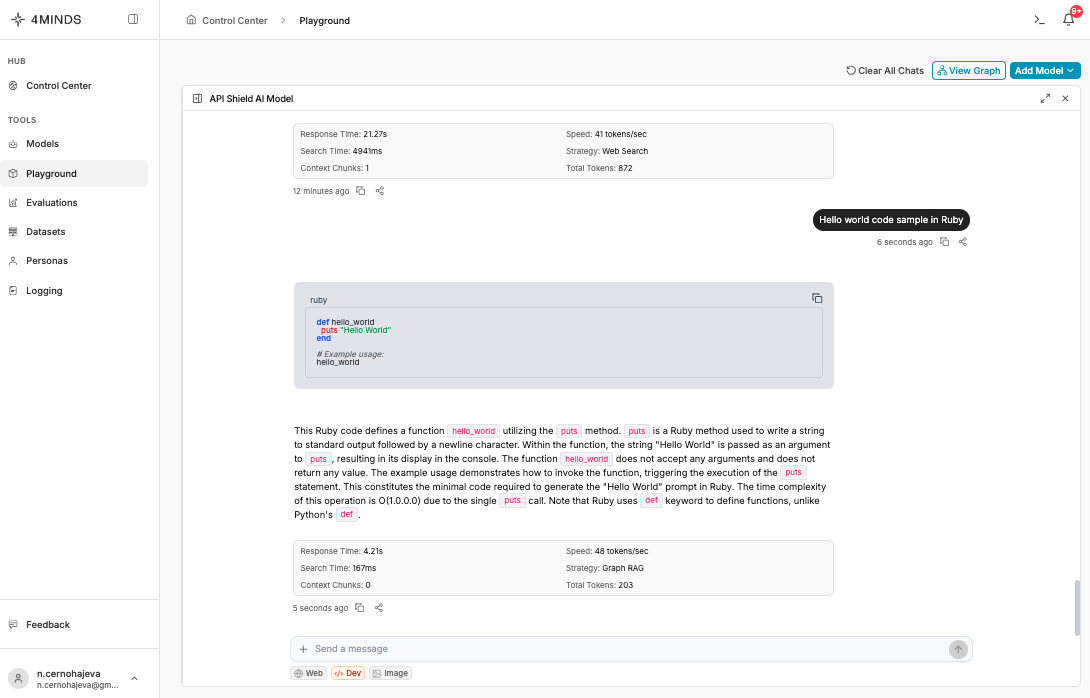

- Response Time: Total time from submitting a request to receiving a full response, including search, retrieval, and generation.
- Speed: The rate at which tokens are generated during the response, measured in tokens per second.
- Search Time: Time spent retrieving information from the knowledge base or context sources.
- Strategy: The retrieval method used for the query, such as Graph RAG, Vector Search, Hybrid, or Direct.
- Context Chunks: The number of retrieved knowledge segments used to generate the response.
- Total Tokens: The combined count of input and output tokens used in the request.
Image Mode
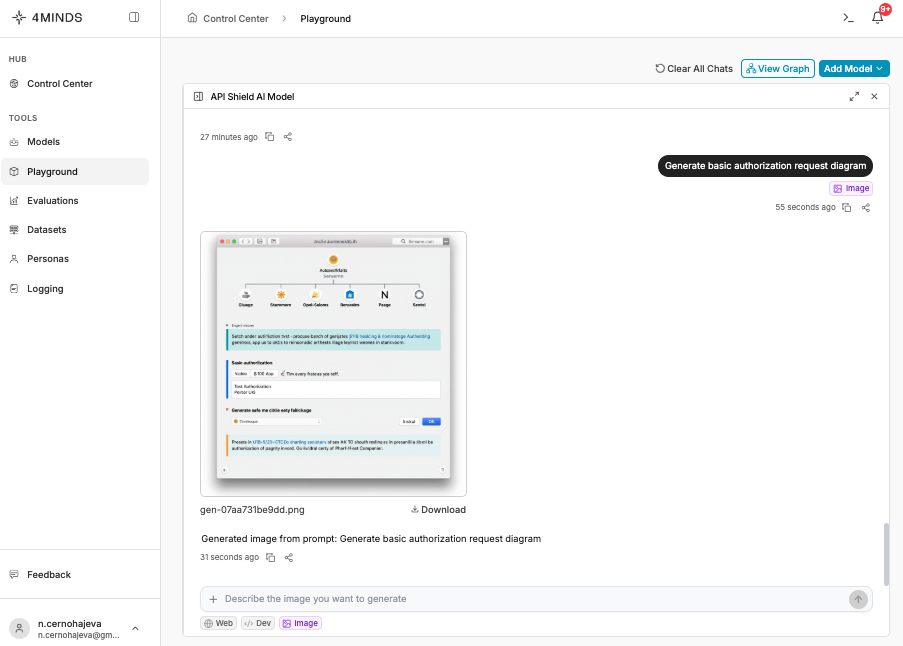
Purpose: AI image generation Use Cases:- Creating visual mockups
- Generating diagrams and illustrations
- Producing marketing materials
- Visualizing concepts and ideas
- Locate the ‘Download’ button below the image
- Click to save the image to your local system
- Image saves with the displayed filename
Core Features
Multi-Turn Conversations
The system maintains context across multiple interactions within a session. How to use:- Continue asking follow-up questions without repeating context
- Reference previous responses using terms like “that”, “the previous example”
- Build iteratively on earlier responses